
How to Place Mesh Nodes: Simple Rules That Work in Real Homes
This guide is written for real homes, not perfect lab conditions. How to Place Mesh Nodes: Simple Rules That Work in Real Homes can feel overwhelming because Wi-Fi problems rarely have one cause. The good news: if you test in a simple way and make changes in the right order, you can usually fix the issue or at least isolate what needs to be upgraded.
Below you will find a practical walkthrough, a quick-reference table, and image suggestions you can create or screenshot while you work. Use the checklists and test points so you can see progress instead of guessing.
Quick Rules That Work
Start with placement basics: keep the main node in an open area near the center of your home, keep nodes off the floor, and avoid placing them behind a TV or inside a cabinet. Then build a chain of strong links: each satellite should have a strong connection to the main node or to another satellite.
Test after each move. A good mesh layout is discovered, not imagined. Two small moves can be the difference between reliable video calls and constant drops.
Step-by-Step Walkthrough
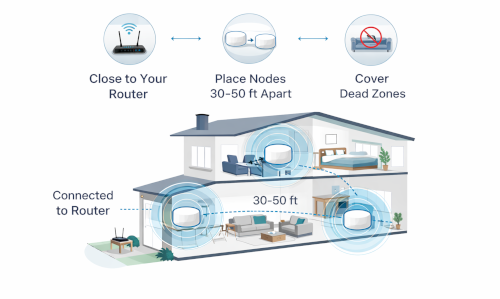
Walk the home with your phone and note where signal feels weak. Place one satellite roughly halfway between the main node and the weak area, not inside the weak area. Confirm in the mesh app that the node reports a good link. Then test from the weak room.
If speeds are still low, move the node a little closer to the main node and retest. The goal is a stronger backhaul link. Only add a second satellite once the first one is placed well.
Quick Reference
Use this table as a fast checklist. If you are reading on mobile while troubleshooting, it helps you keep your place and avoid repeating steps.
| Step | What to do | Why it helps | Time |
| 1 | Test from near, mid, far spots | Shows the real coverage problem | 10 min |
| 2 | Change one thing and retest | Prevents guessing | 5-20 min |
| 3 | Optimize placement/backhaul | Improves stability and far-room speed | 15-60 min |
| 4 | Lock in settings and update firmware | Reduces future drops | 5-15 min |
How to Confirm Your Fix
After you make changes, confirm results with the same test method each time. Run a speed test from your three spots, then walk between rooms while streaming audio or a video call. If the issue is gone for two full days of normal use, it is probably solved.
If the problem returns, look for patterns: time of day, specific devices, or specific rooms. That pattern will point to congestion, interference, or a particular node.
Frequently Asked Questions
- How many nodes do I need for How to Place Mesh Nodes? A good starting point is one main node plus one satellite for every additional 1,000-1,500 sq ft, but layout matters more than square footage. If your home is long, multi-story, or has dense materials like brick or plaster, you may need an extra node even at smaller sizes. Start small, place carefully, and add nodes only when testing shows a real gap.
- Should I separate 2.4GHz and 5GHz into different network names? For most modern homes, a single combined name is simplest and helps devices roam. Split names can help if you have older smart devices that refuse to join 5GHz or if you need manual control for troubleshooting. If you split, keep the password identical and remember that some devices will not hop bands automatically.
- Is Wi-Fi 6E or Wi-Fi 7 worth paying extra for? It depends on congestion and backhaul. If you live in a dense area and your mesh uses 6GHz for node-to-node communication, 6E can improve stability. If your main issue is a bad layout or poor node placement, newer Wi-Fi versions will not fix that. Spend on a better layout plan or wired backhaul first.
- Do I need to keep my ISP router? Sometimes. Fiber providers and bundled TV service can require the ISP gateway for phone or set-top boxes. Cable internet usually allows you to use your own modem and router, which simplifies the network. If you keep the ISP gateway, bridge mode or access point mode keeps things stable.
- What does ‘backhaul’ mean in plain English? Backhaul is the connection between your mesh nodes. Wireless backhaul uses Wi-Fi to link nodes. Wired backhaul uses ethernet. A stronger backhaul means your far rooms can get closer to the speed and stability of the main node.
- Why is my speed test fast near the router but slow in the bedroom? Signal strength and interference drop speed quickly through walls and floors. Also, the device might be connected to the wrong node or stuck on 2.4GHz. The fix is usually placement (move a node), steering settings, or wired backhaul for the busy areas.
- Can too many nodes make mesh worse? Yes. Extra nodes can add interference and force devices to roam more often. If nodes are too close, they compete. If they are too far, they create weak links. The best mesh layouts use the fewest nodes that still provide strong links.
- How do I know if drops are my ISP or my Wi-Fi? If wired devices also drop, suspect the ISP or modem. If only Wi-Fi drops while wired stays stable, suspect node placement, interference, or the mesh system. Checking the modem signal page or ISP outage tools can also help.
- Do I need QoS for gaming? QoS can help if your home saturates upload or download during gaming, like when someone is streaming or uploading files. It cannot fix a weak signal. If your router offers a simple ‘optimize for gaming’ setting, try it, but measure results and keep expectations realistic.
- What should I do first when Wi-Fi feels unstable? Start with the basics: reboot in the right order, update firmware, and test from three spots. Then focus on placement and backhaul. Only after that should you change advanced settings. This order prevents you from chasing ghosts.
Deep Dive: Practical Notes and Common Mistakes
A guide should feel like a walkthrough. Start with a quick rule set, then show the reader how to apply it. Include one or two example layouts and a ‘what to do if it fails’ section. That second part is what separates a helpful guide from a generic blog post.
When you teach placement or backhaul, emphasize repeatability: test, move, retest. People get stuck because they make five changes at once. If you give them a simple loop, they can solve their own home without guessing.
If you only change one thing today, change how you test. Most people judge a Wi-Fi system by one speed test standing next to the main router. That hides the real problem: weak signal where you actually use devices. For reliable results, test from three spots (near, mid, far), run at least two passes, and note latency or jitter if your speed test app reports it. Then make one change at a time so you can see what helped.
A common mistake is treating mesh like magic. Mesh is still radio. Walls, floors, mirrors, kitchens, and even aquariums can weaken signal. The goal is not to put nodes everywhere; it is to create a clean chain of strong links. A smaller number of well-placed nodes usually outperforms a larger number of poorly placed ones.
When you troubleshoot, separate the problem into layers: internet (ISP), modem or gateway, router or mesh, Wi-Fi signal, and device behavior. For example, if ethernet on the main node is slow, the issue is not roaming. If only one phone is slow, the issue may be that phone. This simple separation prevents hours of random settings changes.
If you are building for long-term reliability, plan for wired where it counts. Even if you cannot run ethernet to every room, having one wired link between floors or between the main node and a busy work area can make the whole system feel more stable. Wired backhaul is not required for everyone, but it is the fastest way to reduce drops and speed swings.
Hi, this is a comment.
To get started with moderating, editing, and deleting comments, please visit the Comments screen in the dashboard.
Commenter avatars come from Gravatar.